
Product docs and API reference are now on Akamai TechDocs.
Search product docs.
Search for “” in product docs.
Search API reference.
Search for “” in API reference.
Search Results
results matching
results
No Results
Filters
Deploy Mastodon
Quickly deploy a Compute Instance with many various software applications pre-installed and ready to use.
Mastodon is an open-source and decentralized micro-blogging platform used to create a social network based on open web standards and principles. Like Twitter, it lets users follow other users and post text, photos, and video content. Unlike Twitter, Mastodon is decentralized, meaning that its content is not maintained by a central authority.
The Mastodon platform takes a federated approach to social networking. Each Mastodon instance operates independently — anyone can create an instance and build their community. Users from different instances can still follow each other, share content, and communicate. Mastodon participates in the Fediverse, a collection of social networks and other websites that communicate using the ActivityPub protocol. That allows different Mastodon instances to communicate and also allows other platforms in the Fediverse to communicate with Mastodon.
Mastodon servers range in size from small private instances to massive public instances and typically center on specific interests or shared principles. The biggest Mastodon server is Mastodon.social, a general-interest server created by the developers of the Mastodon platform. It has over 540,000 users and boasts a thorough Code of Conduct.
Deploying a Quick Deploy App
Akamai Quick Deploy Apps let you easily deploy software on a Compute Instance using Cloud Manager. See Get Started with Quick Deploy Apps for complete steps.
Log in to Cloud Manager and select the Quick Deploy Apps link from the left navigation menu. This displays the Linode Create page with the Marketplace tab pre-selected.
Under the Select App section, select the app you would like to deploy.
Complete the form by following the steps and advice within the Creating a Compute Instance guide. Depending on the Quick Deploy App you selected, there may be additional configuration options available. See the Configuration Options section below for compatible distributions, recommended plans, and any additional configuration options available for this Quick Deploy App.
Click the Create Linode button. Once the Compute Instance has been provisioned and has fully powered on, wait for the software installation to complete. If the instance is powered off or restarted before this time, the software installation will likely fail.
To verify that the app has been fully installed, see Get Started with Akamai Quick Deploy Apps > Verify Installation. Once installed, follow the instructions within the Getting Started After Deployment section to access the application and start using it.
Configuration Options
- Supported distributions: Ubuntu 24.04 LTS
- Recommended minimum plan: 2GB Shared CPU Compute Instance or higher
Mastodon Options
Limited Sudo User
You need to fill out the following fields to automatically create a limited sudo user, with a strong generated password for your new Compute Instance. This account will be assigned to the sudo group, which provides elevated permissions when running commands with the sudo prefix.
Limited sudo user: Enter your preferred username for the limited user. No Capital Letters, Spaces, or Special Characters.
Locating The Generated Sudo Password A password is generated for the limited user and stored in a
.credentialsfile in their home directory, along with application specific passwords. This can be viewed by running:cat /home/$USERNAME/.credentialsFor best results, add an account SSH key for the Cloud Manager user that is deploying the instance, and select that user as an
authorized_userin the API or by selecting that option in Cloud Manager. Their SSH pubkey will be assigned to both root and the limited user.Disable root access over SSH: To block the root user from logging in over SSH, select Yes. You can still switch to the root user once logged in, and you can also log in as root through Lish.
Accessing The Instance Without SSH If you disable root access for your deployment and do not provide a valid Account SSH Key assigned to theauthorized_user, you will need to login as the root user via the Lish console and runcat /home/$USERNAME/.credentialsto view the generated password for the limited user.
Custom Domain (Optional)
If you wish to automatically configure a custom domain, you first need to configure your domain to use Linode’s name servers. This is typically accomplished directly through your registrar. See Use Linode’s Name Servers with Your Domain. Once that is finished, you can fill out the following fields for the Quick Deploy App:
- Linode API Token: If you wish to use the Linode’s DNS Manager to manage DNS records for your custom domain, create a Linode API Personal Access Token on your account with Read/Write access to Domains. If this is provided along with the subdomain and domain fields (outlined below), the installation attempts to create DNS records via the Linode API. See Get an API Access Token. If you do not provide this field, you need to manually configure your DNS records through your DNS provider and point them to the IP address of the new instance.
- Subdomain: The subdomain you wish to use, such as www for
www.example.com. - Domain: The domain name you wish to use, such as example.com.
") within any of the App-specific configuration fields, including user and database password fields. This special character may cause issues during deployment.- Email for the Let’s Encrypt certificate (required): The email you wish to use when creating your TLS/SSL certificate through Let’s Encrypt. This email address receives notifications when the certificate needs to be renewed.
- Username for the Mastodon Owner (required): The username for the Owner user that will be created for the Mastodon server.
- Email Address for the Mastodon Owner (required): The contact email for the Mastodon server’s owner.
- Single-user mode (required): Enabling Single User Mode prevents other users from joining the Mastodon Server.
Obtain the Credentials
Once the app is deployed, you need to obtain the credentials from the server. To obtain the credentials:
Log in to your new Compute Instance using one of the methods below:
- Lish Console: Log in to Cloud Manager, click the Linodes link in the left menu, and select the Compute Instance you just deployed. Click Launch LISH Console. Log in as the
rootuser. To learn more, see Using the Lish Console. - SSH: Log in to your Compute Instance over SSH using the
rootuser. To learn how, see Connecting to a Remote Server Over SSH.
- Lish Console: Log in to Cloud Manager, click the Linodes link in the left menu, and select the Compute Instance you just deployed. Click Launch LISH Console. Log in as the
Run the following command to access the contents of the credentials file:
cat /home/$USERNAME/.credentials
This returns the admin password and other details that were automatically generated when the instance was deployed. Save them securely. Once saved, you can safely delete the file.
Getting Started after Deployment
Access Mastodon UI. Open a web browser and navigate to
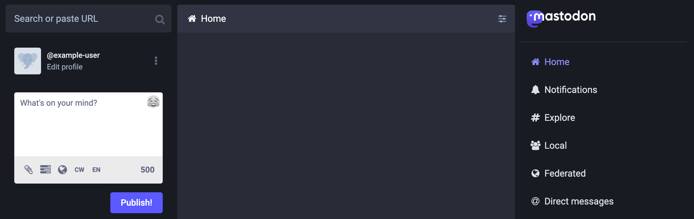
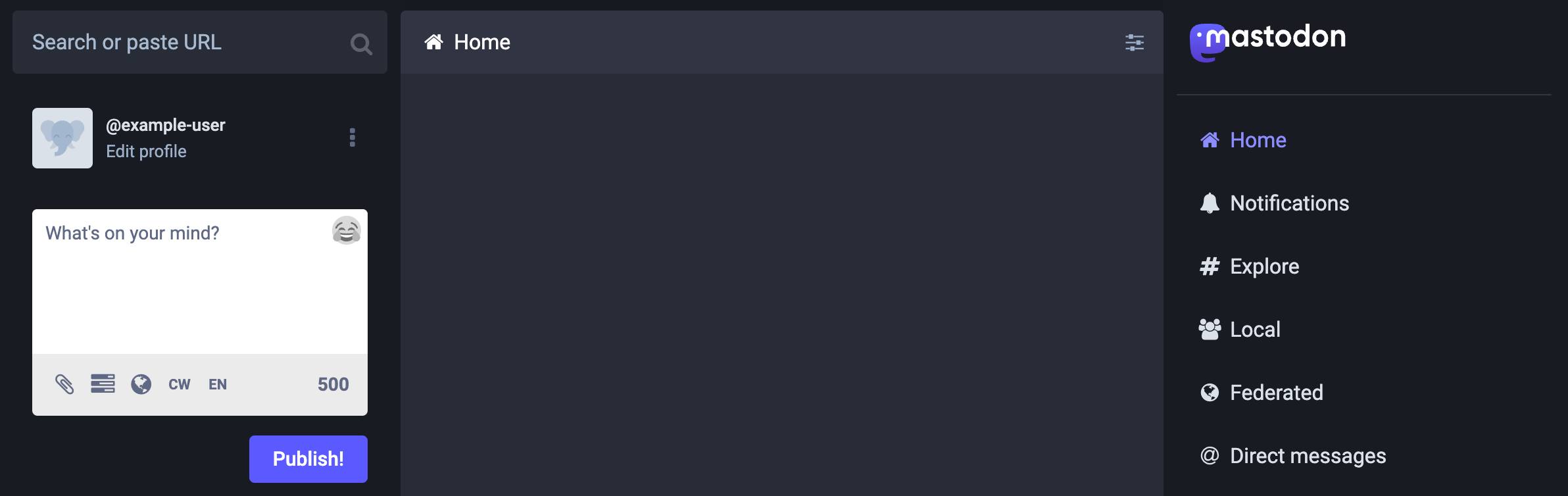
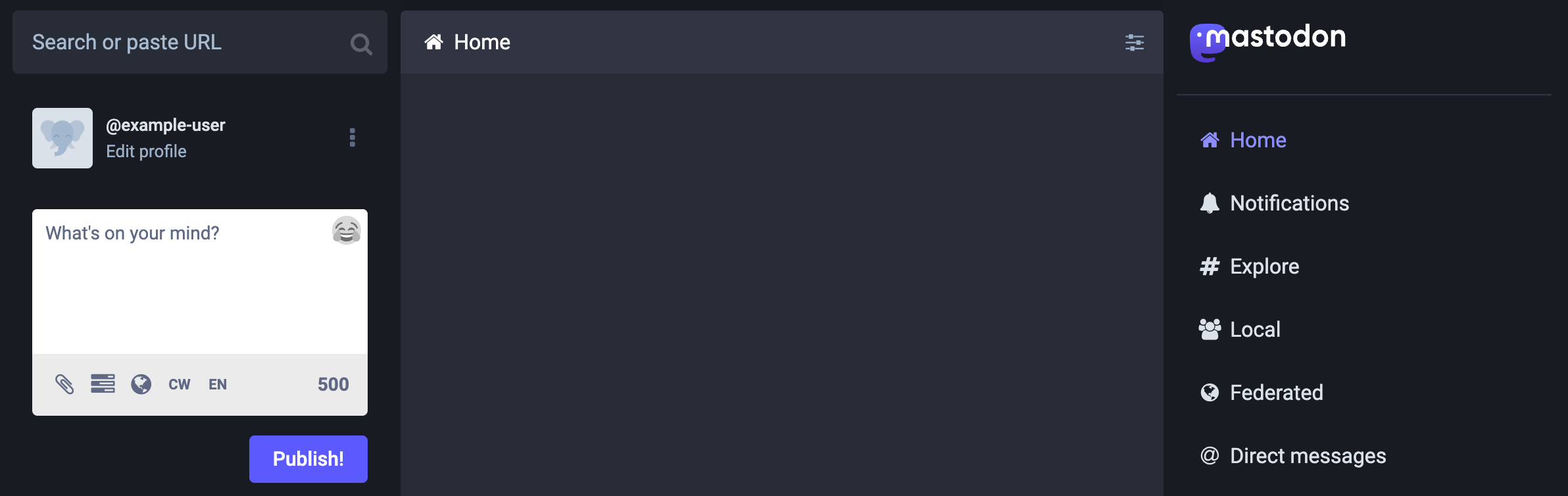
https://[domain.tld]/auth/sign_in, replacing [domain.tld] with the domain you entered when deploying Mastodon or the rDNS domainhttps://203-0-113-0.ip.linodeusercontent.com. This opens the login page. Enter the owner’s email address you created and the password that you obtained in the credentials file.
Access admin settings. Navigate to
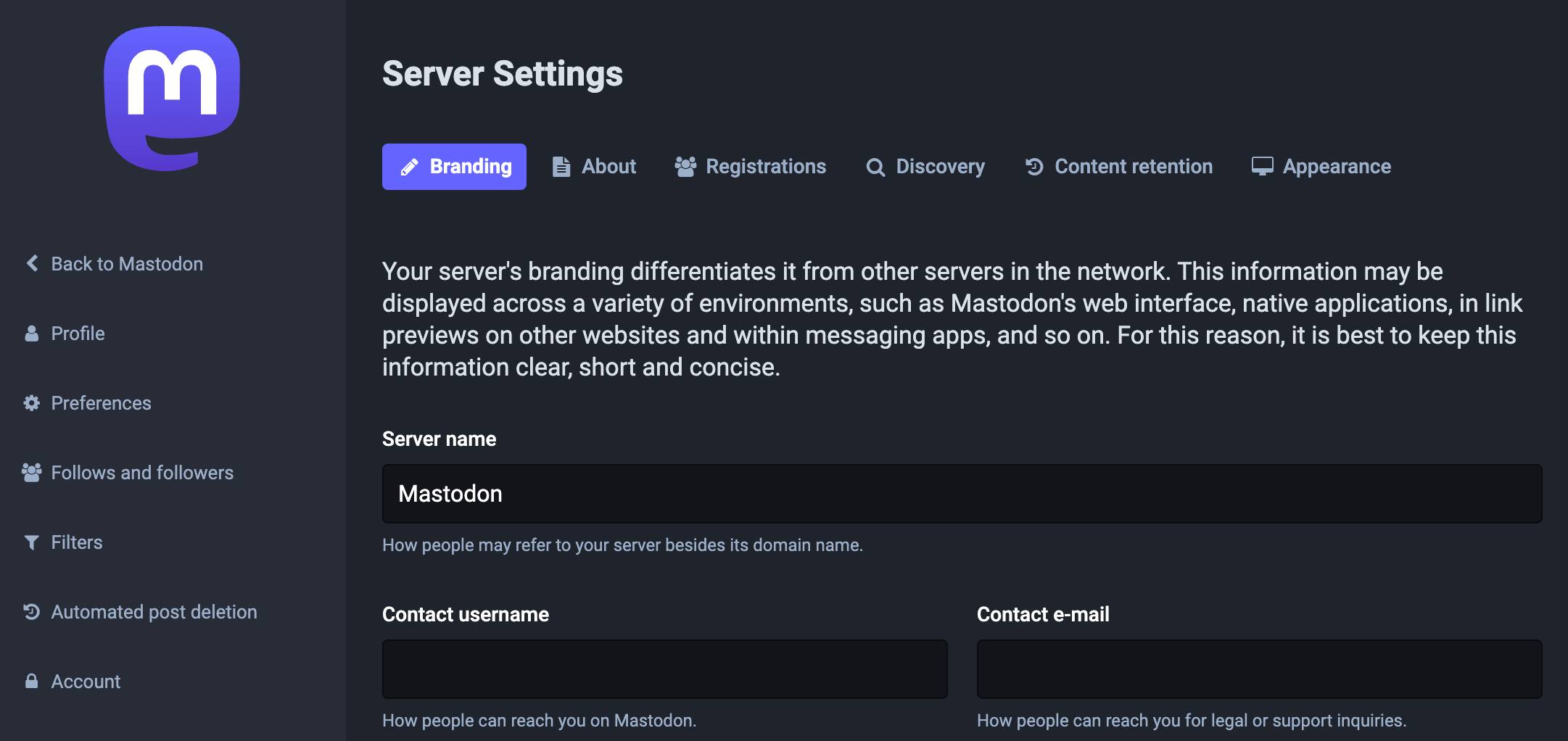
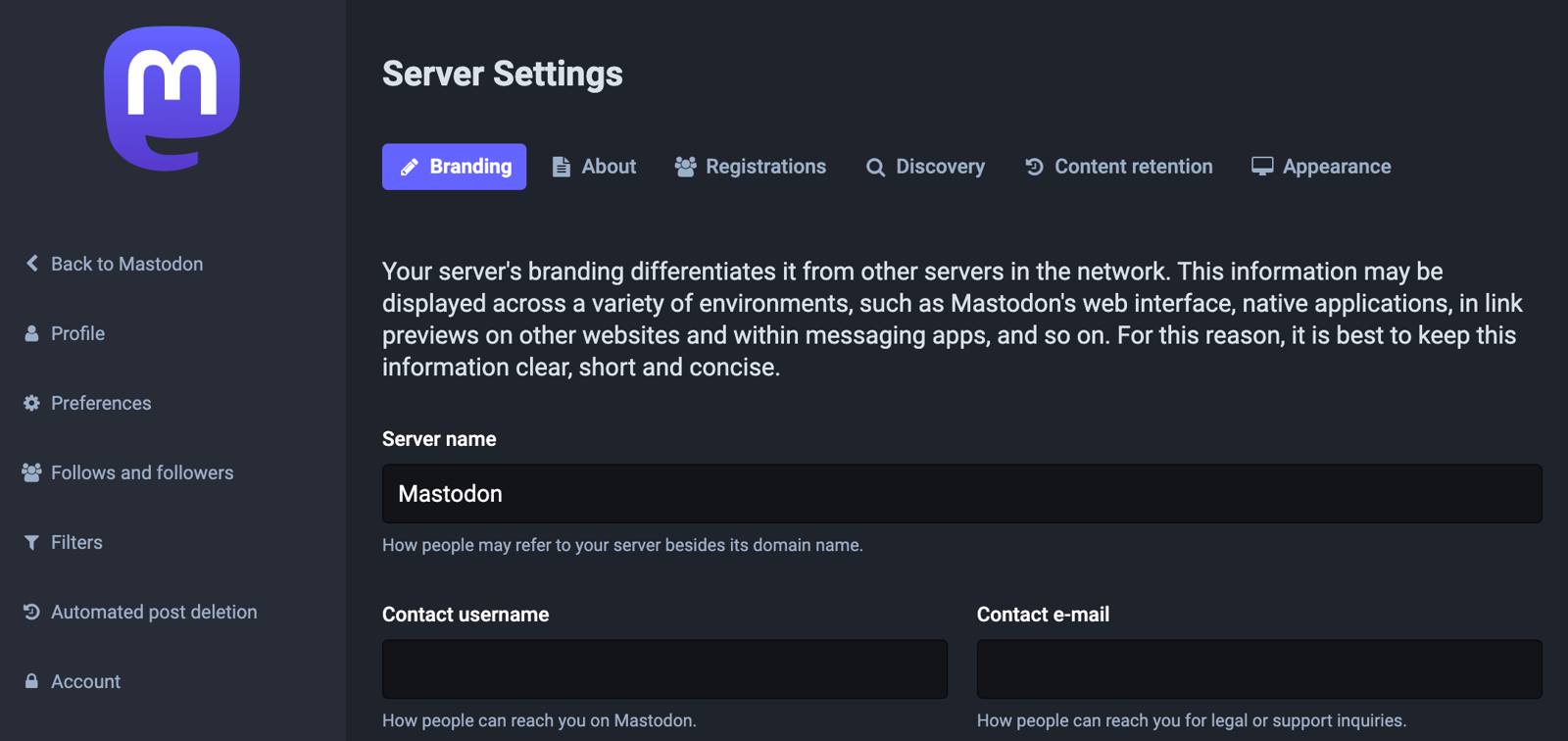
https://[domain.tld]/admin/settings/to view your site’s administration settings. The administration page lets you alter the look, feel, and behavior of your site. Consider configuring each of these settings, including the site name, contact username, contact email, server description, and fields within other tabs.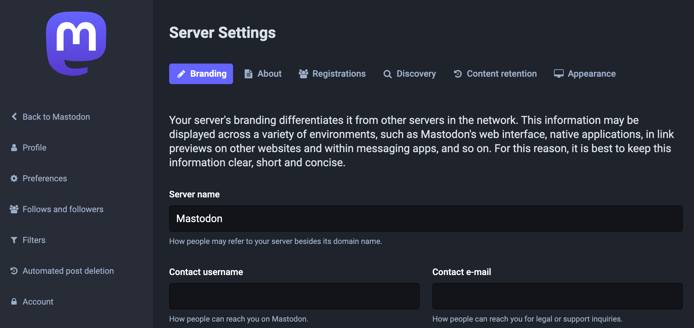
The Mastodon instance also includes Sidekiq (background processing) and PgHero (a performance dashboard for Postgres). Both of these can be accessed through Mastodon Preferences page or by navigating to the following URLs:
- Sidekiq:
https://[domain.tld]/sidekiq - PgHero:
https://[domain.tld]/pghero
- Sidekiq:
The Mastodon server is configured to send emails for actions such as new users signing up or resetting a password. The installation includes only minimal DNS records and there may be limited deliverability without further configuration. Review the guide to Sending Email on Linode for more information on DNS configurations and email best practices.
To learn more about Mastodon, check out the official documentation and Mastodon blog with news and articles related to Mastodon. You can engage with the Mastodon administrative community on Mastodon’s discussion forum, where you can peruse conversations about technical issues and community governance. When you are ready to make your instance known to the world, you can add it to the list over at Instances.social by filling out the admin form.
More Information
You may wish to consult the following resources for additional information on this topic. While these are provided in the hope that they will be useful, please note that we cannot vouch for the accuracy or timeliness of externally hosted materials.
This page was originally published on
